Purpose
The Budget section allows users to create, allocate, and manage financial budgets for different levels (Program, Project, or WBS, Activity, Tasks, Sub-tasks)
Navigation Path
Log in to the application →Go to Left Menu → Finance Module → Budget →Click Add Budget.
Steps to Create a Budget
1. Organization*
- Select the organization from the dropdown list.
2. Title
- Enter a descriptive budget title
3. Fiscal Period*
- Select the fiscal period from the dropdown.
(To configure Fiscal Period and Fiscal Year: Go to Settings → Company Settings → Finance Settings → Fiscal Year)
4. Fiscal Year
- Choose the appropriate fiscal year from the dropdown.
5. Budget Type*
- Select the budget type (e.g., Program Level, Project Level).
6. Initial Amount*
- Enter the total initial amount allocated.
7. Currency
- Select the currency for the budget.
8. Approver
- Choose the approver from the dropdown.
(Approvers can be added under Settings → Company Settings → Organisation → Approvers)
9. Last Date of Approval
- Select the approval deadline from the calendar.
10. Description
- Provide a detailed description of the budget.
Budget Relations
1. Budget Relationship – Select the relationship type from the dropdown.
(Configured in Settings → Company Settings → Finance Settings → Budget Relationship Types)
2. Parameters & Values – Choose predefined parameters and their corresponding values.
(Configured in Settings → Company Settings → Finance Settings → Budget Parameters)
Line Items
For each line item:
- Enter Title
- Select Cost Category
- Enter Amount*
- Select Currency*
- Define Order
- Upload Attachments*
Use the ➕ icon to add multiple line items.
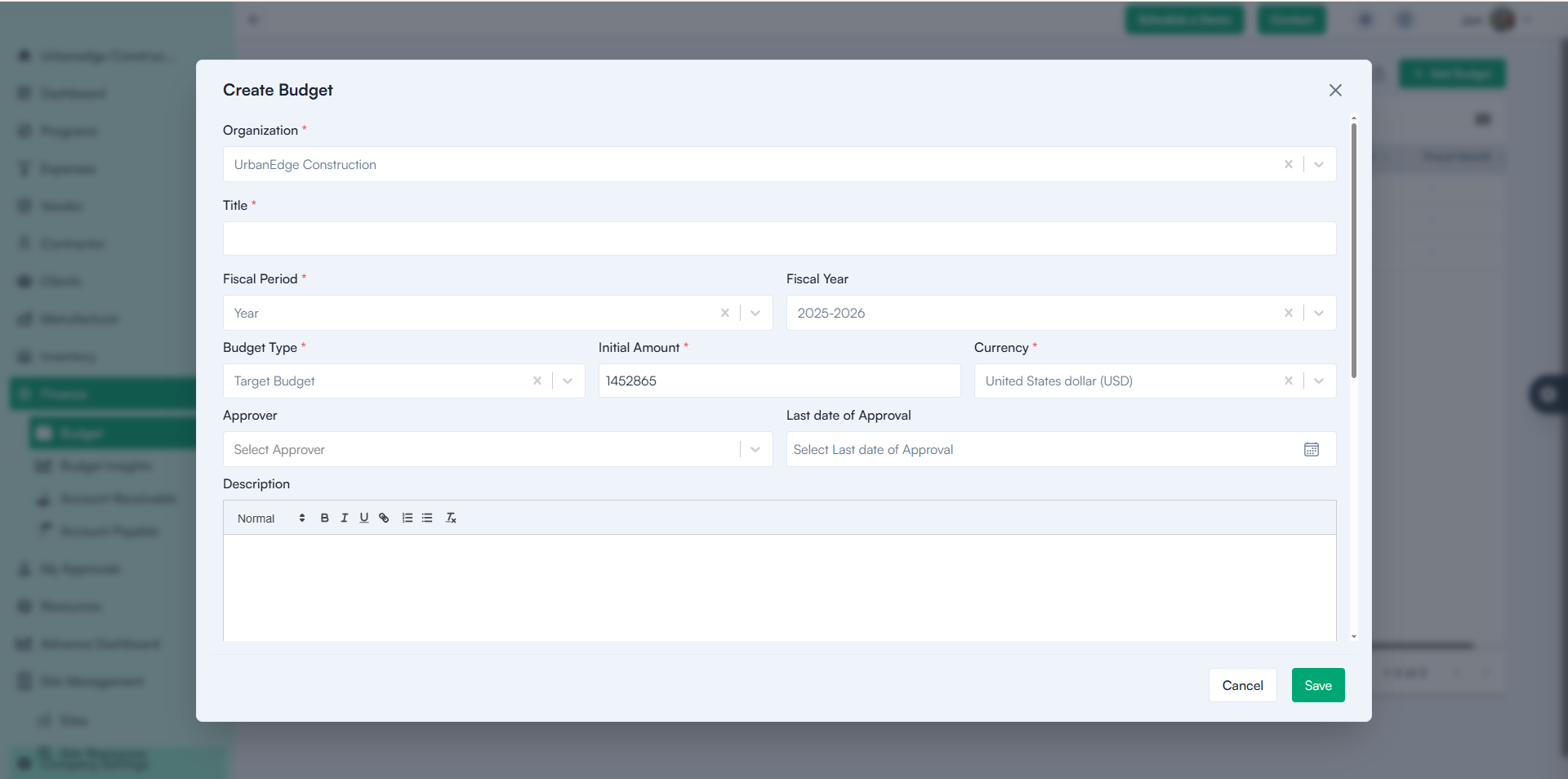
Mandatory Fields
- Organization *
- Title *
- Budget Type *
- Initial Amount *
- Line Items *
Budget Dashboard View
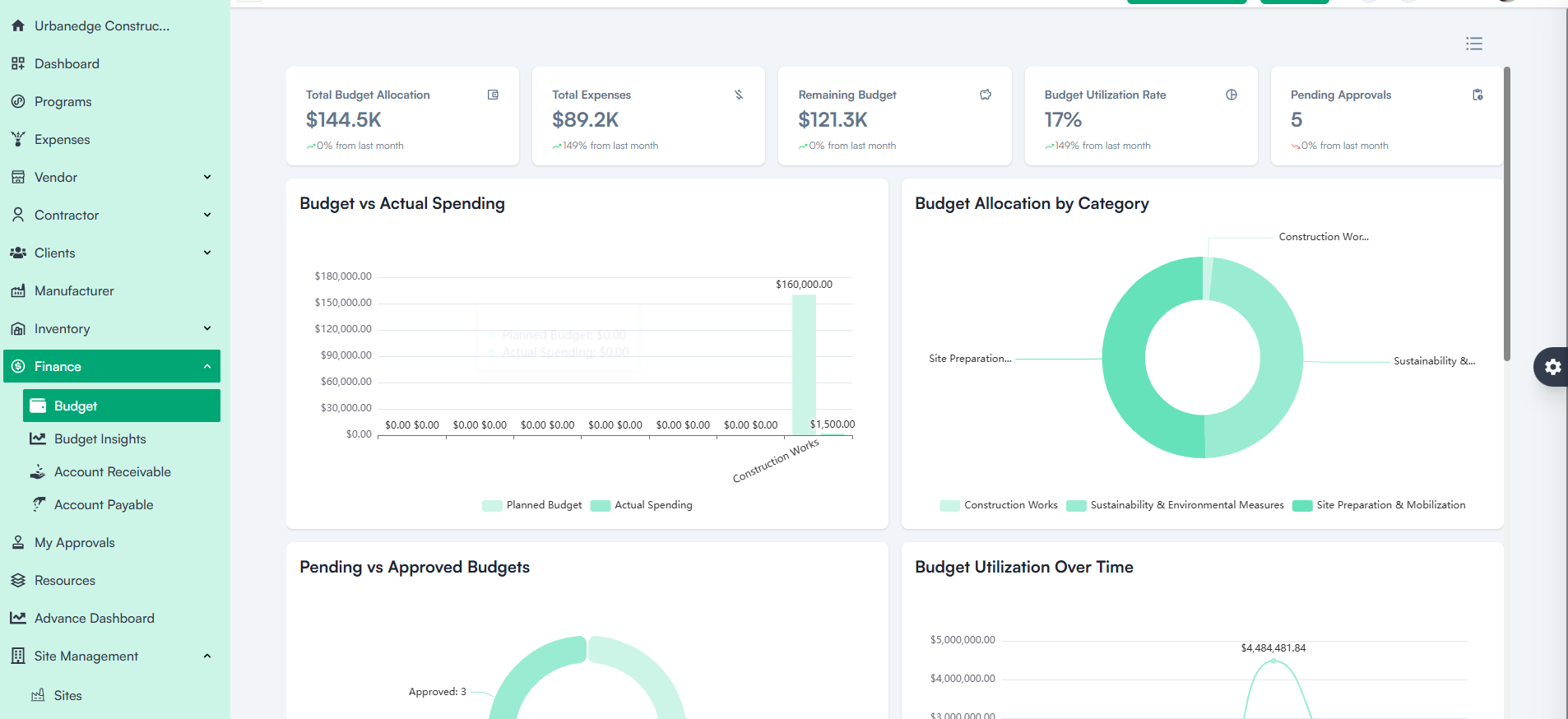
After budget creation, the dashboard provides a visual and analytical view of budget performance through charts and graphs, including:
- Total Budget Allocation
- Total Expenses
- Remaining Budget
- Budget Utilization Rate
- Pending Approvals
- Budget vs. Actual Spending
- Budget Allocation by Category
- Pending vs. Approved Budgets
- Budget Utilization Over Time
- Top Budgeted Projects
- Budget Approval Trends
- Budget Relationships
- Budget Cost Breakdown
Export Functionality
Users can export detailed budget reports.
The system automatically sends the export file to the registered user’s email for security and accessibility.