Overview
Contractor Assets refer to tools, equipment, or infrastructure provided by contractors to support project execution.
Navigation Path
- Log in to the application.
- Navigate to the left menu and click Contractor.
- Click Assets.
- Click the + Add Asset button.
Form Fields Explained
1. Contractor*
Select the contractor to whom the asset is assigned. Only registered contractors will be available.
2. Select Asset
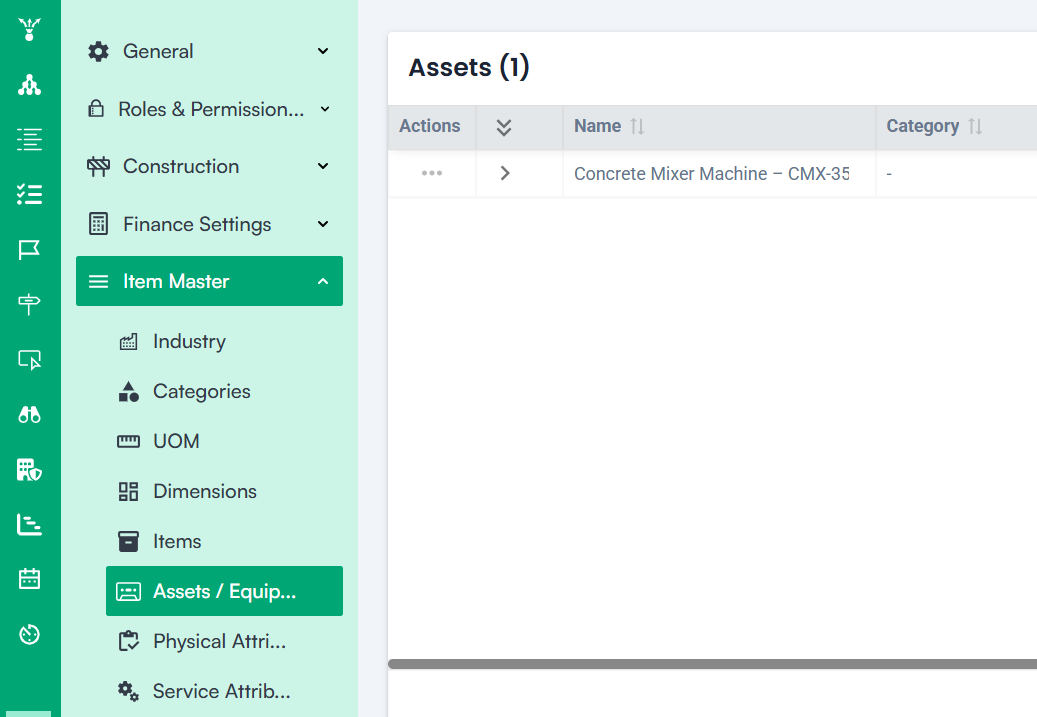
Choose the asset from the dropdown list. Assets must be predefined in Company Settings ➝ Item Master ➝ Asset to ensure uniformity.
3. Price
Enter the unit price of the asset being provided. This field is required for valuation and cost tracking.
4. Currency Code
Select the currency used for asset pricing.
Action Buttons
- Save – Saves the asset details and links them to the contractor’s profile.
- Cancel – Closes the form without saving any changes.
Note: For Creating a Contractor Asset
1. Mandatory Fields:
- Contractor Name *
- Asset *
- Price *
- Currency Code *
2. Configurations in Company Settings:
- Assets are configured under: Company Settings ➝ Item Master ➝ Asset
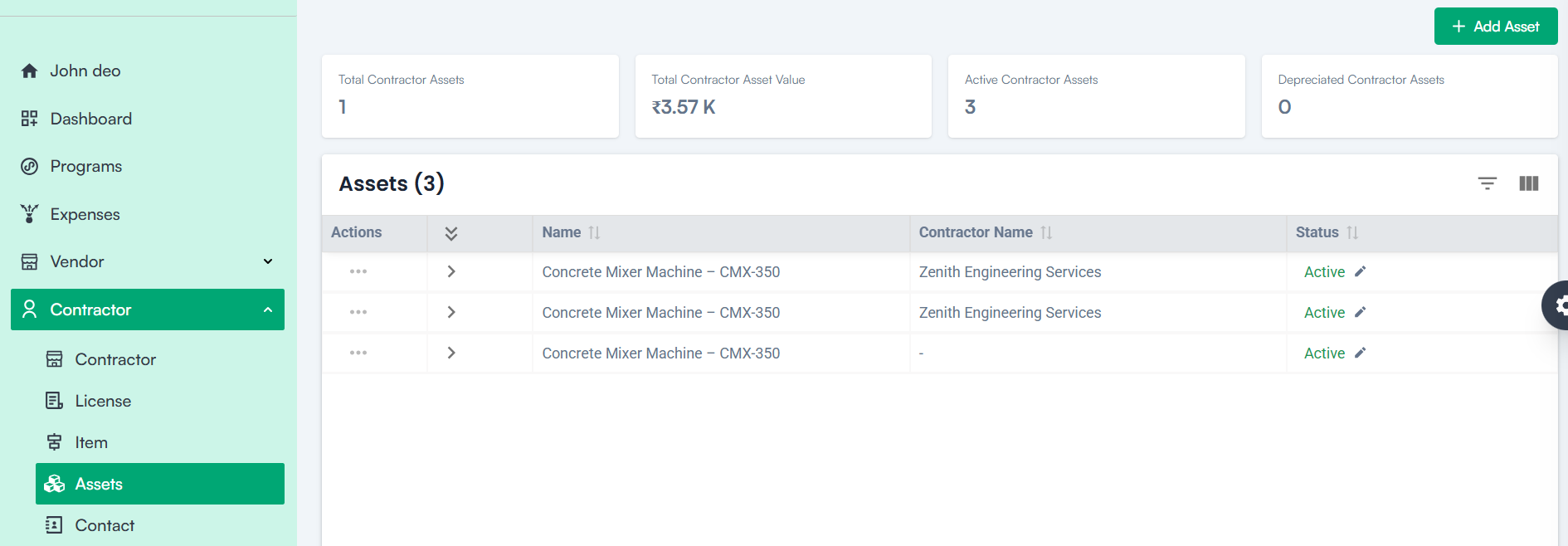
Contractor Asset KPI’s
- Total Contractor Assets – Shows the total number of assets linked to contractors.
- Total Contractor Asset Value – Summarizes the overall value of assets supplied by contractors.
- Active Contractor Assets – Tracks assets currently in use or available.
- Depreciated Contractor Assets – Displays assets that have undergone value reduction due to usage or aging.