The Site Attendance feature ensures that attendance is captured only when a resource is physically present at the site, using GPS-based validation.
When users log in to the Oconstruction Mobile App, they can check in at the site.
If their GPS location matches the site boundary, attendance is marked as Valid; otherwise, it is recorded as Invalid.
How to Record Attendance (Mobile Application)
1. Log in to the mobile app.
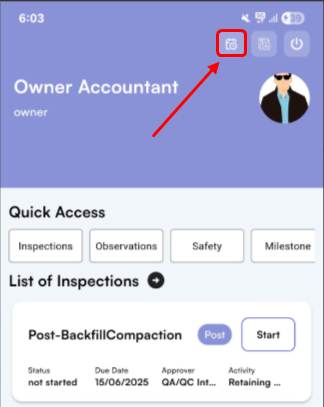
2. Click on the Attendance Icon in the header section.
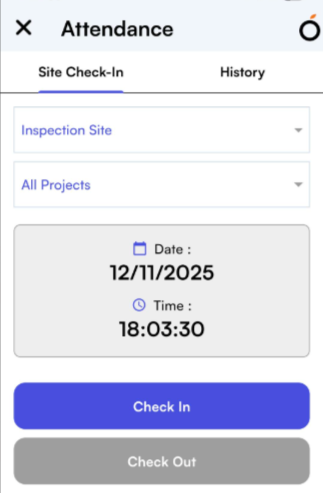
3. Select the Site and Project from the dropdown.
-
- Click on Clock In to mark attendance.
- Click on Clock In to mark attendance.
Attendance Display in Web Application
All clock-in data from the mobile app is automatically displayed in the Site Attendance list on the web.
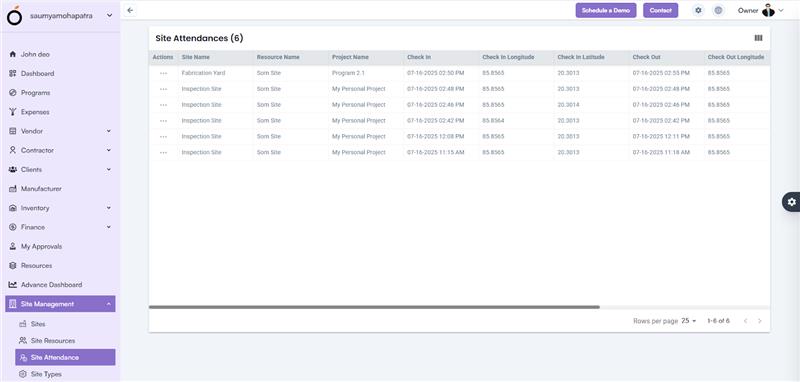
Each record shows:
- Actions
- Site Name
- Resource Name
- Project Name
- Check-In Time
- Check-In Longitude / Latitude
- Check-Out Time
- Check-Out Longitude / Latitude
- Is Valid – Displays whether the check-in was within the site boundary.
- Status – Displays if the attendance is Approved, Pending, or Invalid.
This real-time integration helps site managers verify attendance accuracy and monitor resource presence.