Overview
- Licenses are essential for ensuring that vendors meet legal, safety, and industry-specific compliance requirements.
- Maintaining accurate records of licenses helps with audits, renewals, and regulatory adherence, thereby safeguarding projects and operations.
Filling the License Form
- Log in to the application.
- Navigate to the left menu and click Licenses.
- Click the Add License button at the top-right corner to open the form.
Step-by-Step Instructions to Create a License
1. Select Vendor
Choose the registered vendor from the dropdown list to whom the license applies.
2. Select License
Pick the license type from the dropdown. Example types include:
- Driving License
- ISO Certification
- Safety Compliance Certificate
3. License Number
Enter the official license number as mentioned in the document.
4. Issue Date
Select the date when the license was issued using the calendar picker.
5. Valid Upto
Choose the expiration or validity end date. This helps in setting reminders for renewals and audits.
6. License Document Upload
Attach a soft copy of the license:
- Click the upload icon or “Click to upload.”
- Browse and select the file from your system.
Final Actions
- Save – Store the license record and link it to the vendor’s profile.
- Cancel – Exit the form or discard any changes without saving.
Note: For creating a Vendor License:
1. Mandatory Fields:
- Vendor Name *
- License *
- Issue Date *
- Valid Up to *
2. Configurations in Company Settings:
- Licenses are configured under: Company Settings ➜ License and Certification
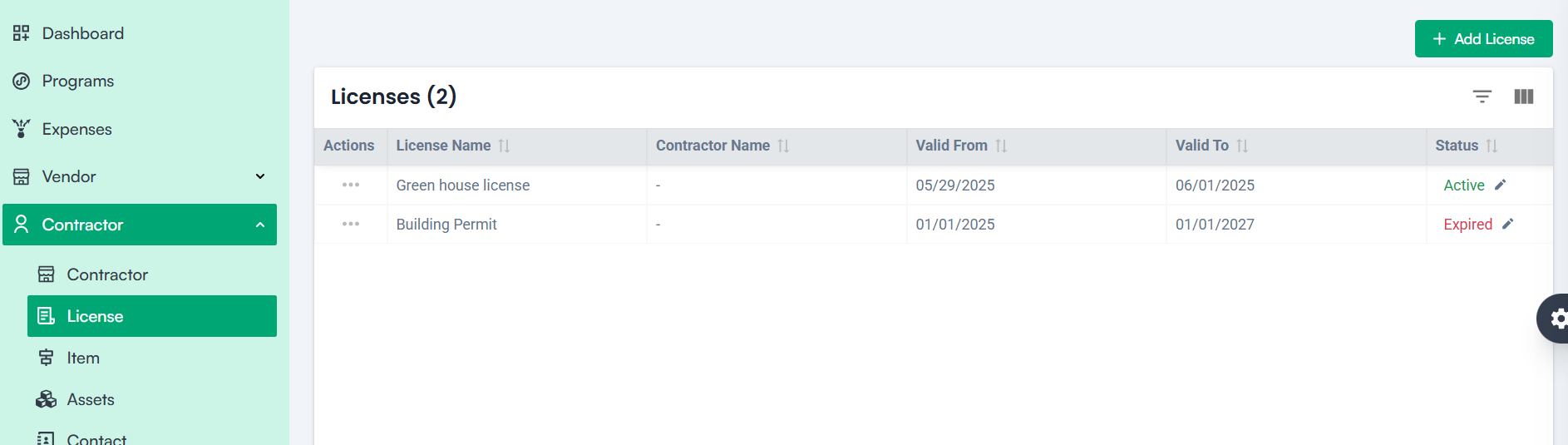
License Table Overview
The License table provides a structured view of all licenses linked to vendors, helping users track compliance and document details.
Table Columns:
- License Name – Displays the type of license assigned to the vendor (e.g., Driving License, Safety Compliance Certificate).
- Vendor Name – Shows the name of the vendor to whom the license is linked.
- Valid From – Indicates the start date when the license became effective.
Valid To – Displays the expiration date of the license to help monitor renewals.